

Wine Club Selections Walkthrough
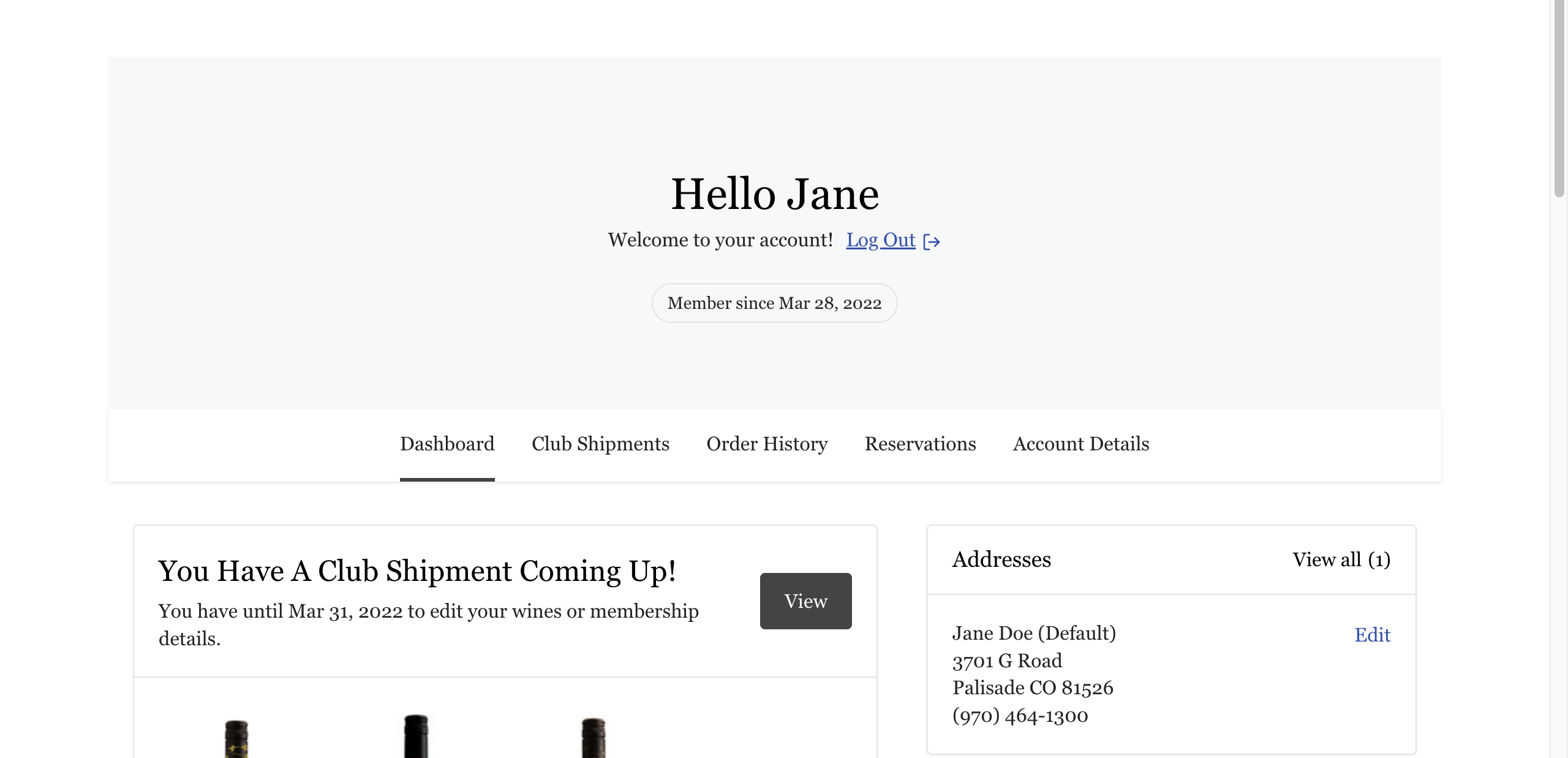
1. Log in to your account to view your dashboard. Here, you can view upcoming club shipments, past orders, upcoming reservations, and update your account information.
Please note: the default address and default payment method on your dashboard (shown above) do not automatically update to be the default for your club membership. You will need to verify that the correct address and payment method are selected as the defaults for the wine club section of your profile as well (steps 8-10).
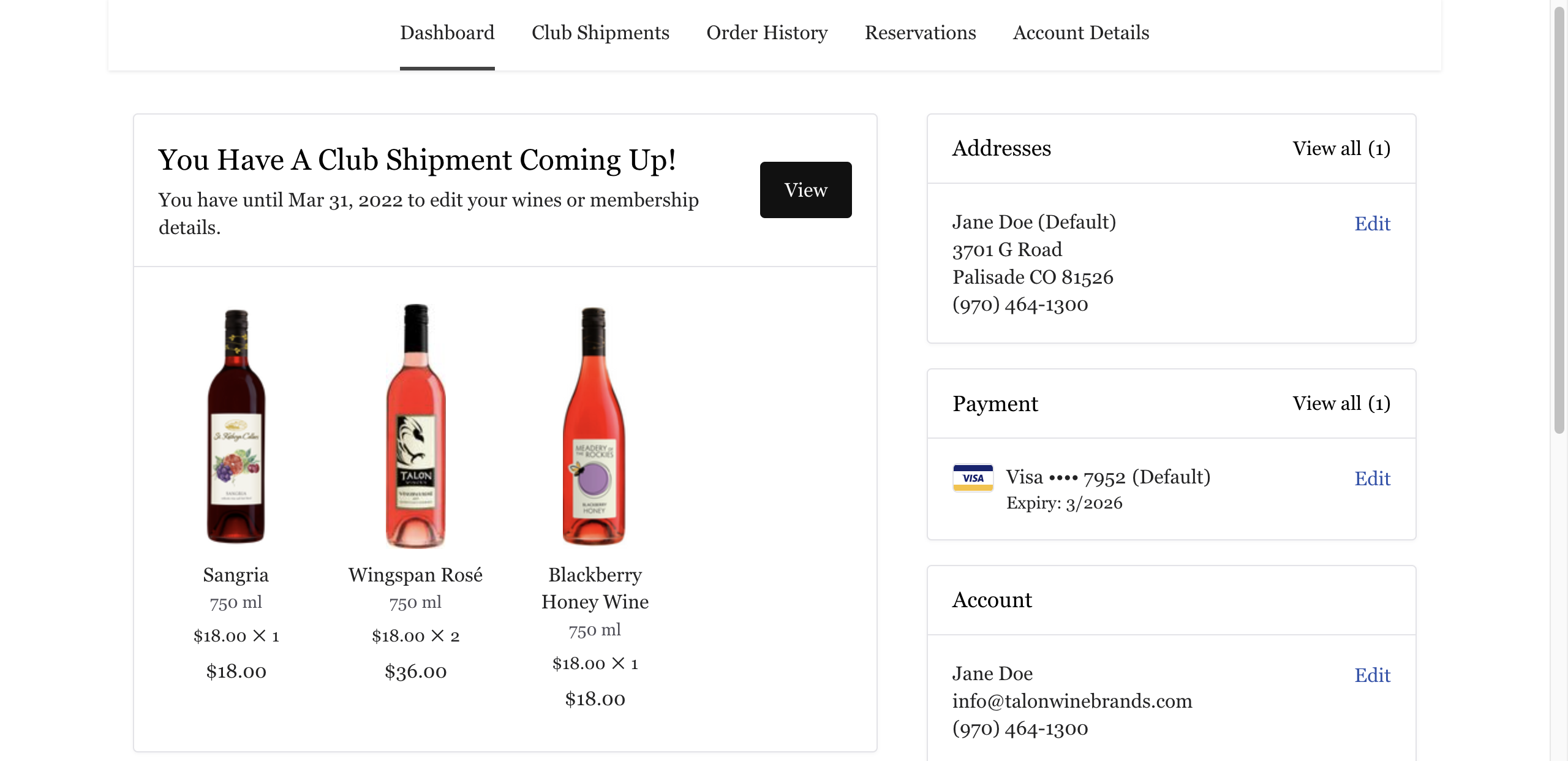
2. To make your selections for an upcoming club order, click on “View” OR click on the “Club Shipments” tab
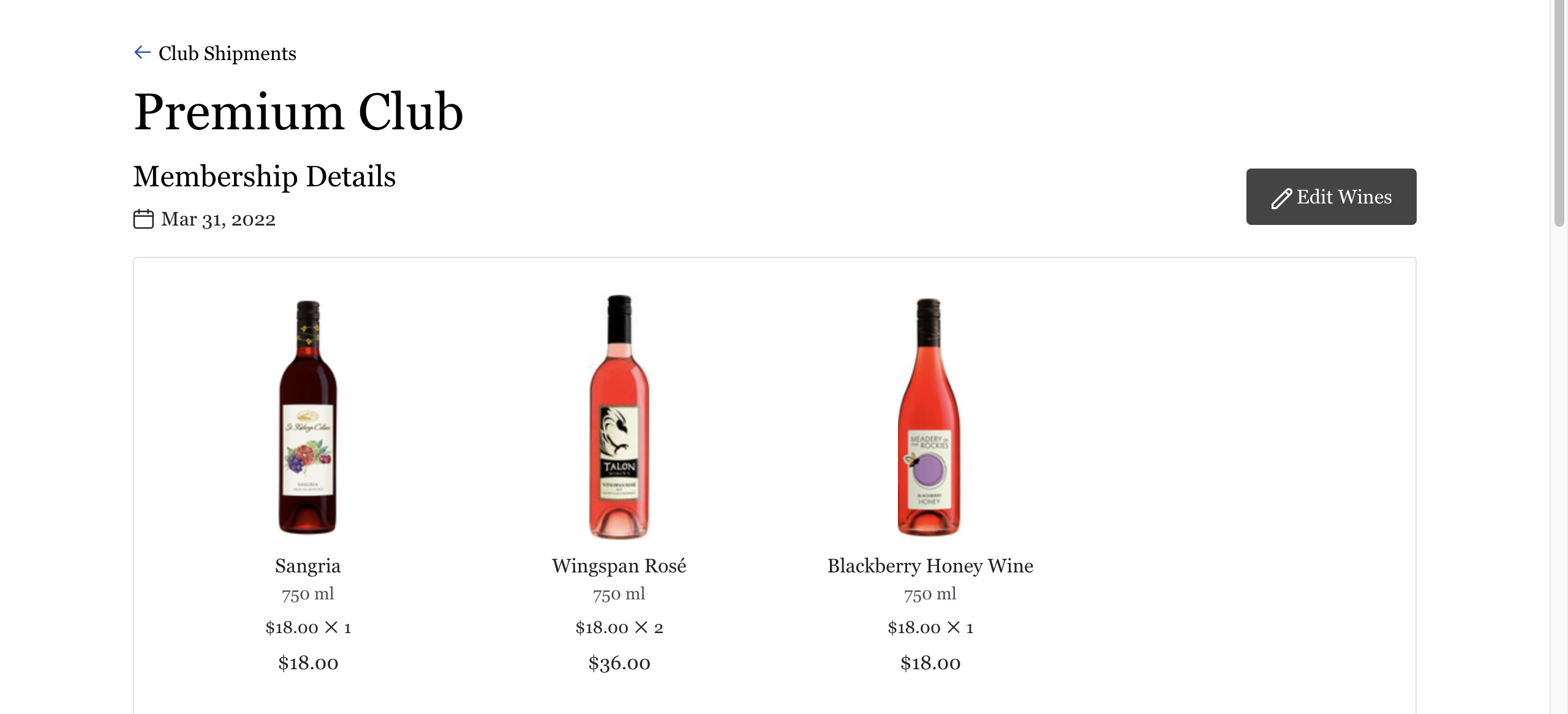
3. Our Winemaker’s Selections will be automatically added as that quarter’s selections. Select “Edit Wines” to customize your selections.
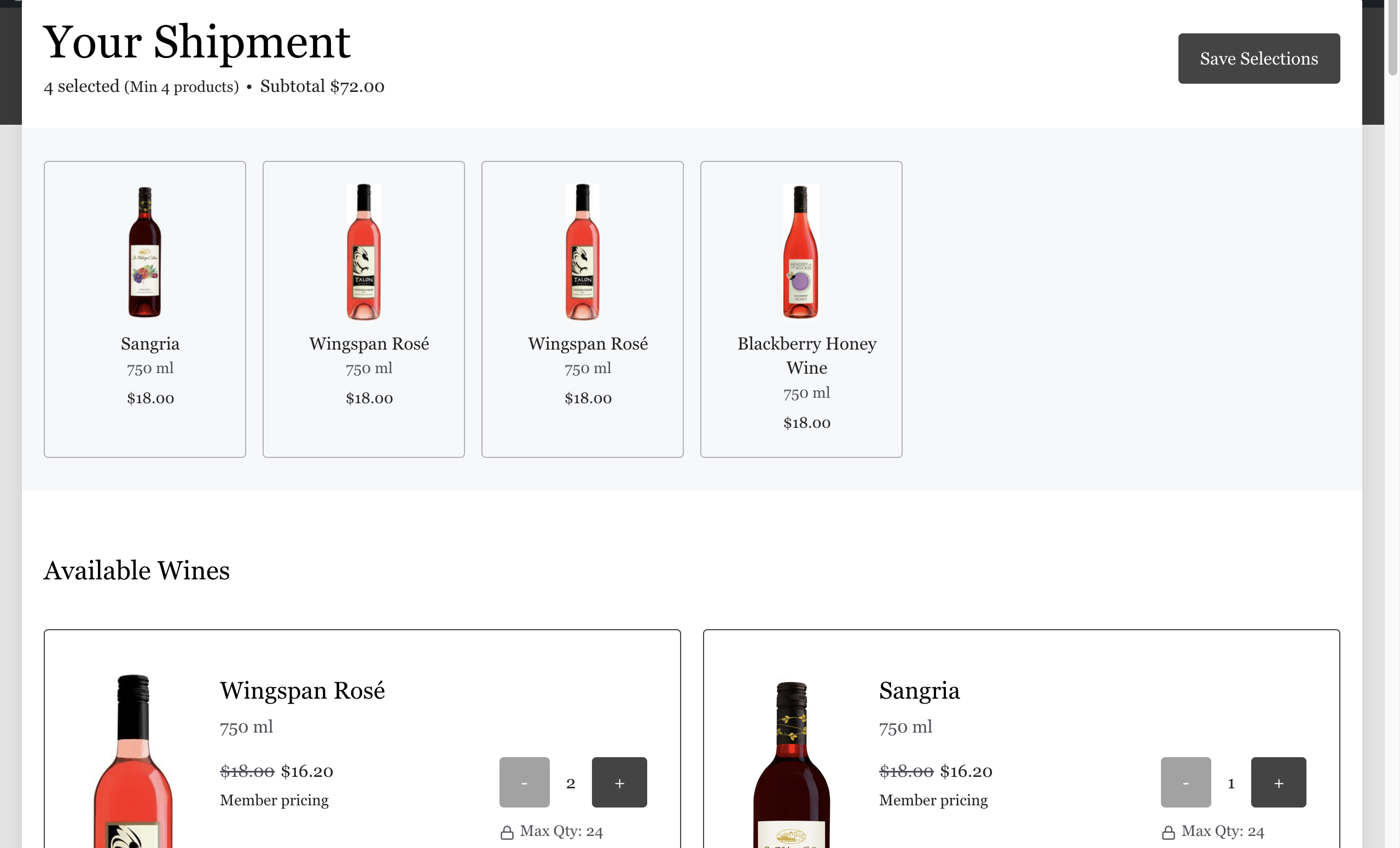
4. Here you can view all available wines for the given quarter and customize your selections. Minimum wine quantities for each club are 4 (Silver), 6 (Gold), and 12 (Platinum). You can add up to 24 wines to your quarterly selection.
You must have the minimum number of wines for your club level (4, 6, or 12) in your cart at all times. If you would like to replace a wine, you must add the replacement before you remove the wine you do not want.
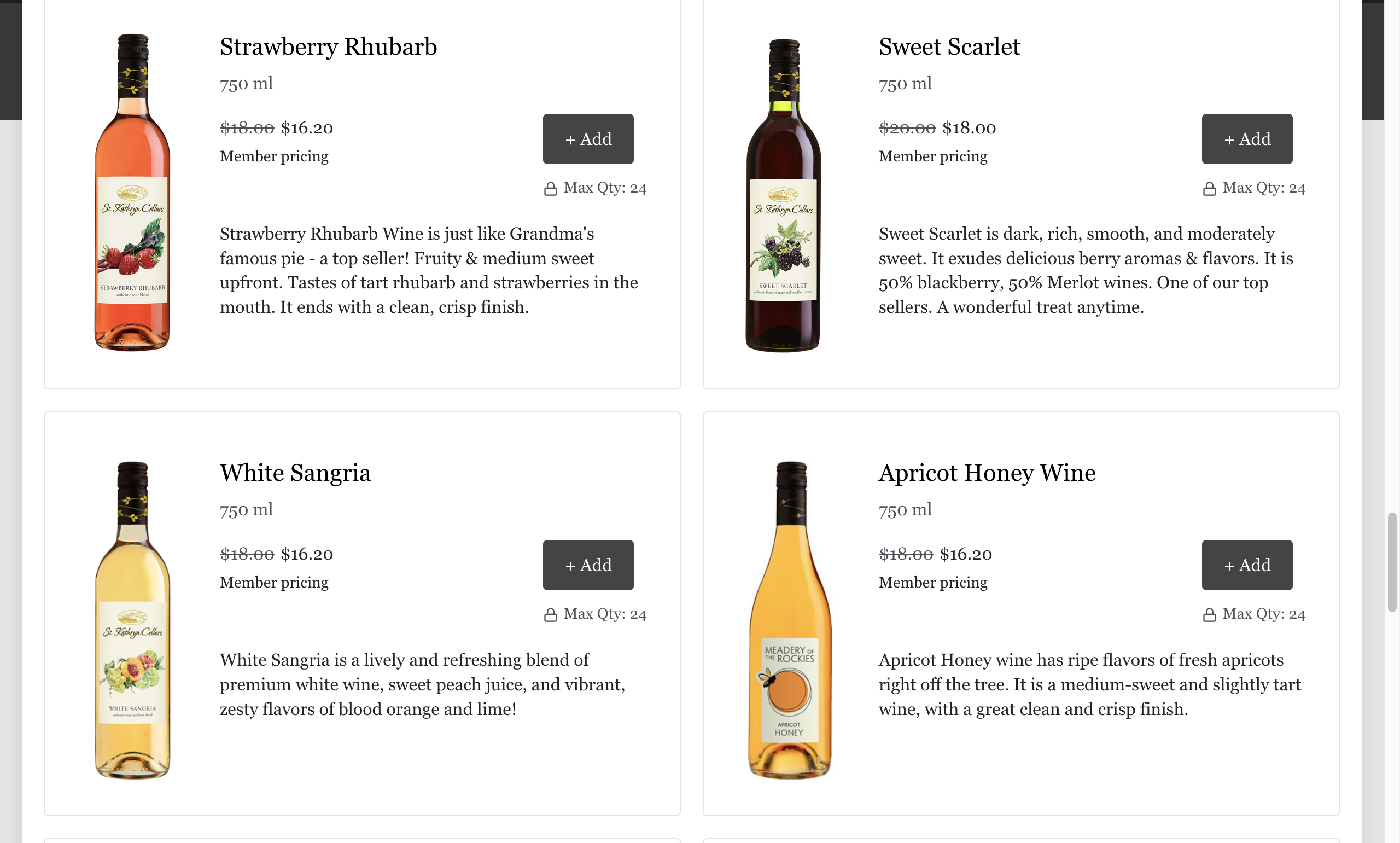
5. For example, we’ll add a bottle of White Sangria to our order here.
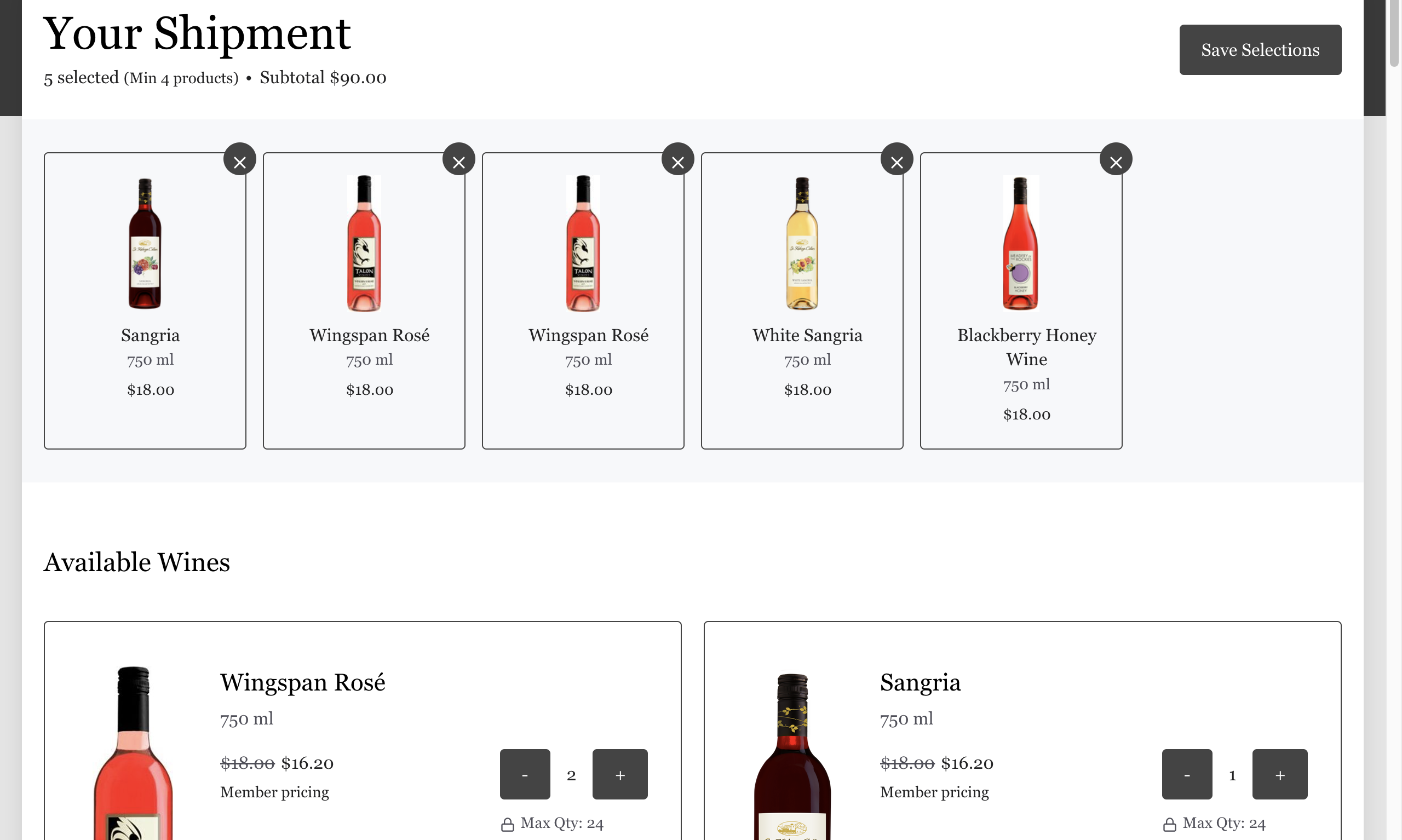
6. It will populate at the top, where all of your wine selections will be displayed. You can then remove a wine from your order by clicking on the “X” in the upper right-hand corner. Once you have finalized your wine selections, click “Save Selections”.
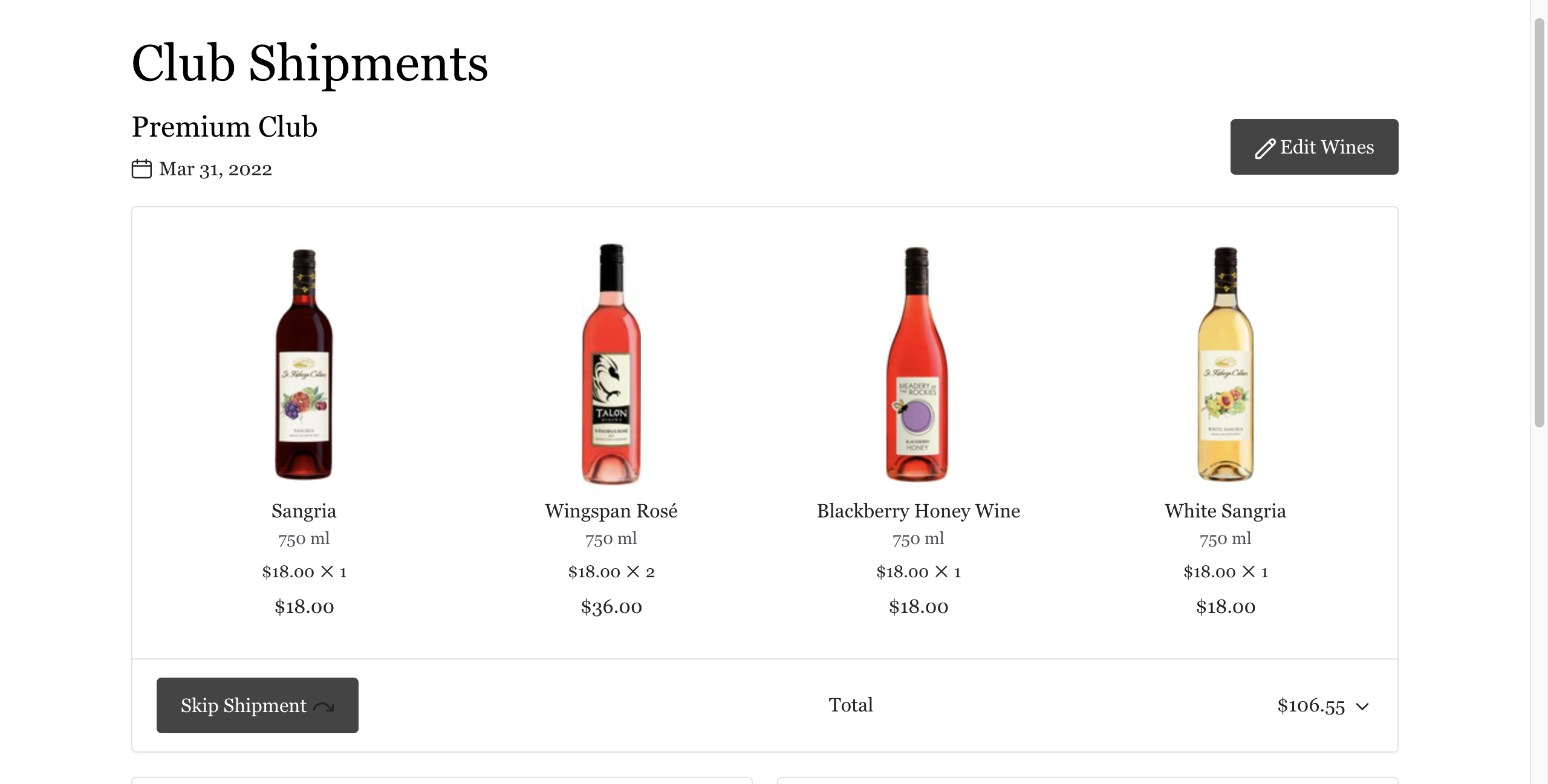
7. You will now see your updated wine selections displayed on your account. If you change your mind, you will be able to make additional changes up until the end of the selection window.
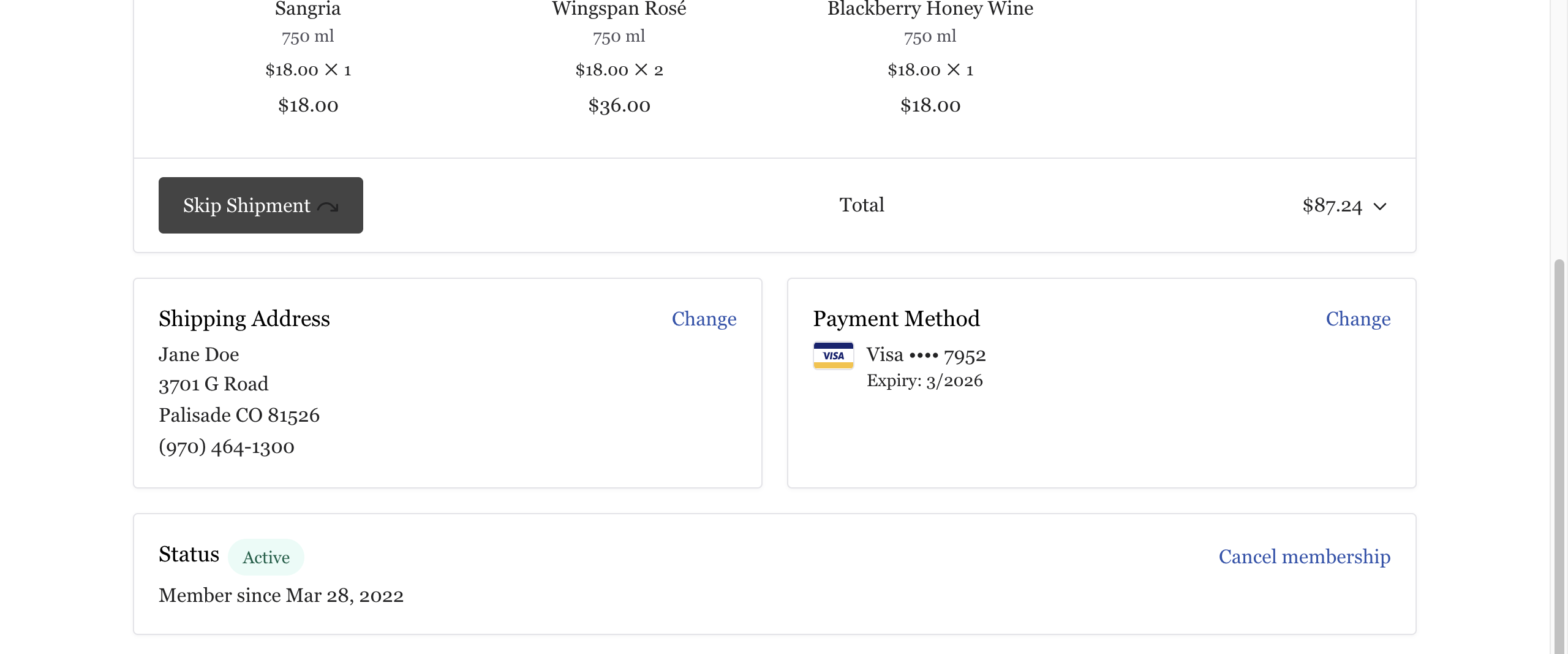
8. Scroll down and verify your shipping address. If you would like to pick up your order instead, find the “Shipping Address” box and click “Change”.
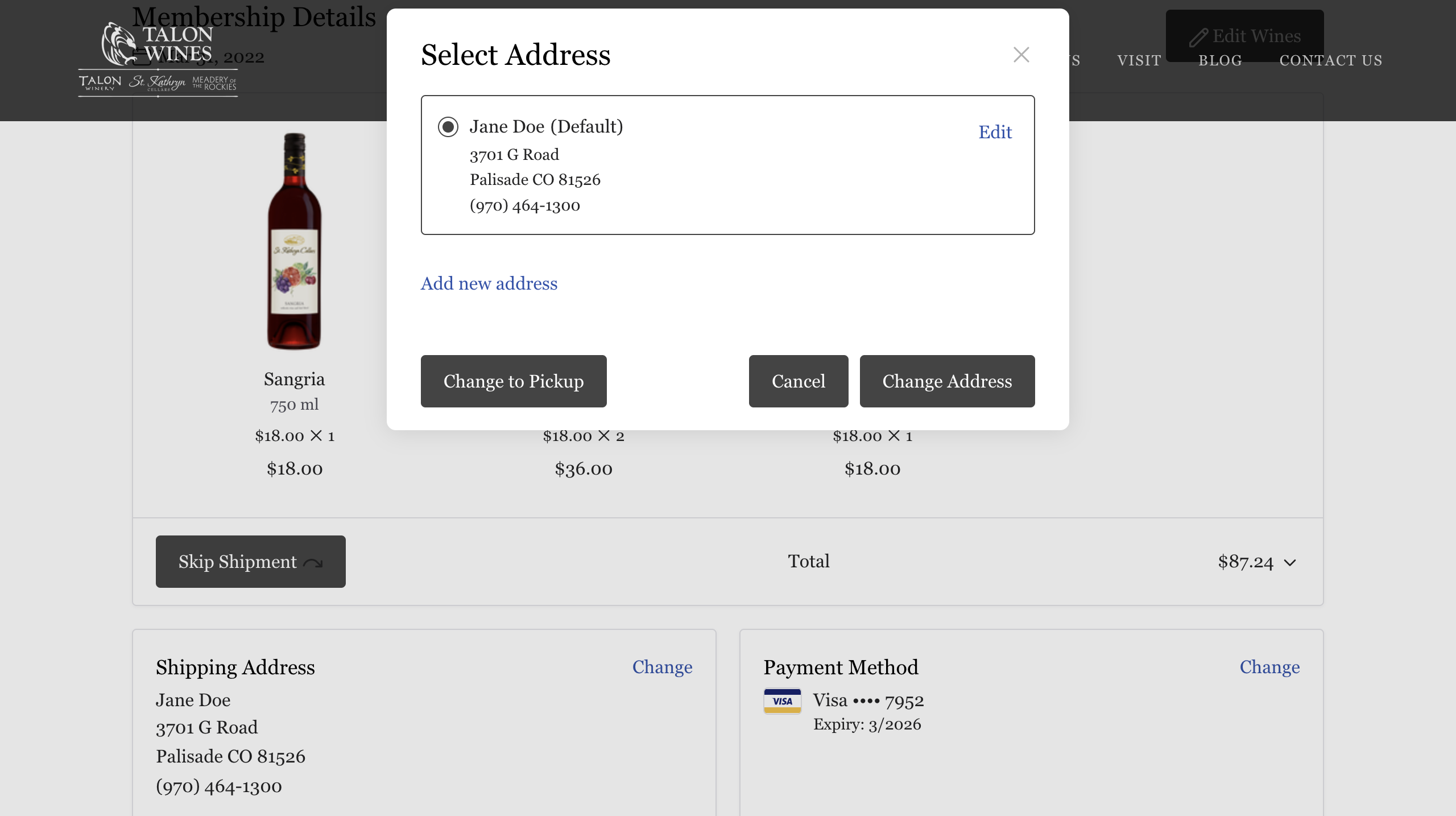
9. Select “Change to Pickup”, then “Update Membership”.
10. Lastly, verify your payment method and review your selections one last time. You’re all set!